
Bulk Uninstall Windows Programs the Right Way
Bulk Crap Uninstaller wipes out dozens of unwanted apps in one go. It catches the leftover files, registry junk, and stubborn programs that regular uninstallers leave behind.
What Is Bulk Crap Uninstaller?
A free, open-source Windows tool built for removing large numbers of programs at once – and cleaning up the mess they leave behind.
Batch uninstalls, done properly
Bulk Crap Uninstaller (also known as BCUninstaller or BCU) is a program manager for Windows that handles what the built-in Add/Remove Programs panel cannot: removing dozens of applications in a single pass. Developed by Klocman Software and released under the Apache 2.0 license, it has earned over 17,000 stars on GitHub since its first release.
The problem it solves is straightforward. Most Windows machines accumulate software over time – trial programs, bundled toolbars, forgotten utilities, pre-installed bloatware. Removing them one at a time through Windows Settings is tedious. And even when you do, leftovers pile up: orphaned registry entries, stray folders, broken shortcuts. Bulk Crap Uninstaller handles both sides of that problem. Select everything you want gone, click uninstall, and it runs through each program’s uninstaller automatically while you do something else.
Finds programs Windows misses
Where Bulk Crap Uninstaller really earns its keep is detection. It picks up registered applications, sure, but also portable programs, Steam and Oculus games, Windows Store apps, Chocolatey packages, and even orphaned entries with broken or missing uninstallers. Each detected program gets color-coded by certificate status – green for verified publishers, blue for unverified, yellow for unregistered, red for missing uninstallers – so you can tell at a glance what you are dealing with.
After removal, BCU scans for leftover files and registry entries that the original uninstallers missed. For programs that refuse to uninstall cleanly (or at all), there is a force removal option that manually strips out every trace it can find. IT administrators use its premade list feature to standardize machine setups across entire offices.
Who actually uses this
BCU works on Windows 7 through Windows 11 and requires .NET 6 (included in the portable download). The portable version is about 8 MB. System administrators like it for deployment cleanup. Home users grab it when a new laptop arrives loaded with manufacturer bloatware. Power users keep it around for periodic housekeeping. Compared to paid alternatives like Revo Uninstaller or Total Uninstall, BCU matches or exceeds their cleanup results – and it costs nothing.
What Makes BCUninstaller Different
Built for power users and IT professionals who need to clean up Windows machines fast. Every feature here solves a real problem that standard uninstallers ignore.
Batch Uninstall
Select dozens of programs and remove them all at once. Bulk Crap Uninstaller handles the queue automatically, running each uninstaller in sequence so you can walk away and come back to a clean system. Particularly useful after a fresh Windows install loaded with bloatware.
Leftover Cleanup
After each uninstall, BCUninstaller scans for orphaned files, empty folders, and stale registry entries the original uninstaller missed. It shows you exactly what it found and lets you review before deleting anything. This recovers disk space that accumulates over months of installing and removing software.
Quiet Uninstall Mode
Runs uninstallers silently without pop-up dialogs or confirmation prompts. BCUninstaller knows how to pass the right silent flags to NSIS, InnoSetup, and MSI-based installers. When a program does not support silent removal, it falls back to the standard uninstaller gracefully.
Detect Hidden Programs
Standard Windows settings only show registered programs. Bulk Crap Uninstaller goes further by scanning for portable apps, orphaned registry entries, and programs that deliberately hide from Add/Remove Programs. Color-coded rows tell you at a glance which apps are verified, unregistered, or missing an uninstaller entirely.
Force Removal
Some programs resist normal uninstallation – their uninstaller crashes, hangs, or simply does not exist. BCUninstaller can forcibly remove these stubborn applications by tracing their files, registry keys, and shortcuts, then cleaning everything out. This works even for partially uninstalled or corrupted software.
Steam, Oculus & Store Apps
BCUninstaller detects applications installed through Steam, Oculus, Chocolatey, Scoop, and the Windows Store alongside traditional desktop programs. You get one unified list of everything on your system rather than jumping between different app managers to clean house.
Certificate Verification
Each program in the list gets its digital signature checked automatically. Verified publishers show green, unverified ones show blue, and unregistered programs appear yellow. This helps you quickly spot potentially unwanted software from unknown publishers that might be worth removing.
Startup Manager
Control which programs launch at boot without digging through Task Manager or msconfig. BCUninstaller shows startup entries alongside the program list, making it easy to disable auto-start for apps you rarely use. Fewer startup programs means faster boot times.
Premade List Uninstall
IT administrators can create text-based lists of software to remove, then run those lists across multiple machines. This turns repetitive deployment cleanup into a one-click operation. Export your current program list, compare it against a baseline, and remove everything that should not be there.
Advanced Filtering & Search
Filter programs by publisher, install date, size, registration status, or whether they have a valid uninstaller. Sort columns, apply quick filters, and search across all detected applications. You can also export the filtered list to CSV for documentation or auditing purposes.
Bulk Crap Uninstaller is free and open-source under the Apache 2.0 license.
Download it now and take back control of your installed programs.
System Requirements
Bulk Crap Uninstaller runs on most Windows machines without issues. Here is what you need to get started.
| Component | Minimum | Recommended |
|---|---|---|
| Operating System | Windows 7 SP1 (64-bit) | Windows 10 or Windows 11 |
| Processor (CPU) | Any x86/x64 processor | Dual-core 1.5 GHz or faster |
| RAM | 256 MB available | 300 MB or more available |
| Disk Space | 50 MB free (portable version) | 150 MB free (with .NET 6 runtime) |
| Runtime | .NET 6 Desktop Runtime | .NET 6 (bundled in portable download) |
| Display | 1024 x 768 resolution | 1280 x 720 or higher |
| Permissions | Standard user (limited features) | Administrator (full uninstall access) |
The portable version ships with the .NET 6 runtime included, so no extra installation is needed.
The installer version is smaller but will download .NET 6 automatically if it is not already on your system.
Older Windows versions (Vista) may work with earlier releases of Bulk Crap Uninstaller.
Download Bulk Crap Uninstaller
Grab the latest release directly from GitHub. Pick the installer for a quick setup, or go portable if you prefer running BCU without installing anything.
If GitHub is slow or blocked in your region, these mirrors host the same official release:
SourceForge Direct Download FossHub Download Page
Both SourceForge and FossHub scan all uploads for malware. The portable version weighs more because it bundles the full .NET 6 runtime, so the program runs on any Windows machine without extra dependencies. The installer is smaller and fetches .NET 6 during setup if your system does not already have it.
New to BCU? Read the Getting Started guide for a walkthrough of your first batch uninstall.
See Bulk Crap Uninstaller in Action
Real screenshots from the application showing the main interface, startup manager, filtering options, and leftover cleanup.
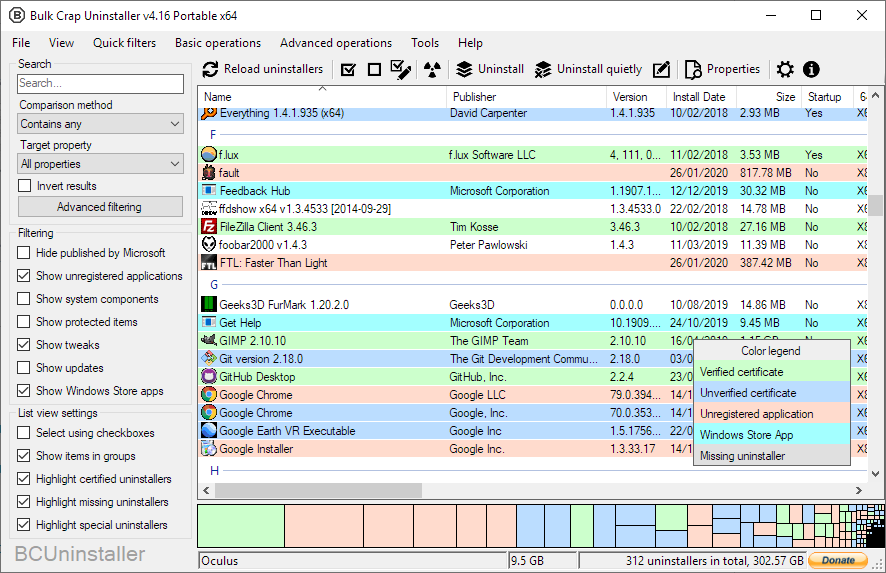
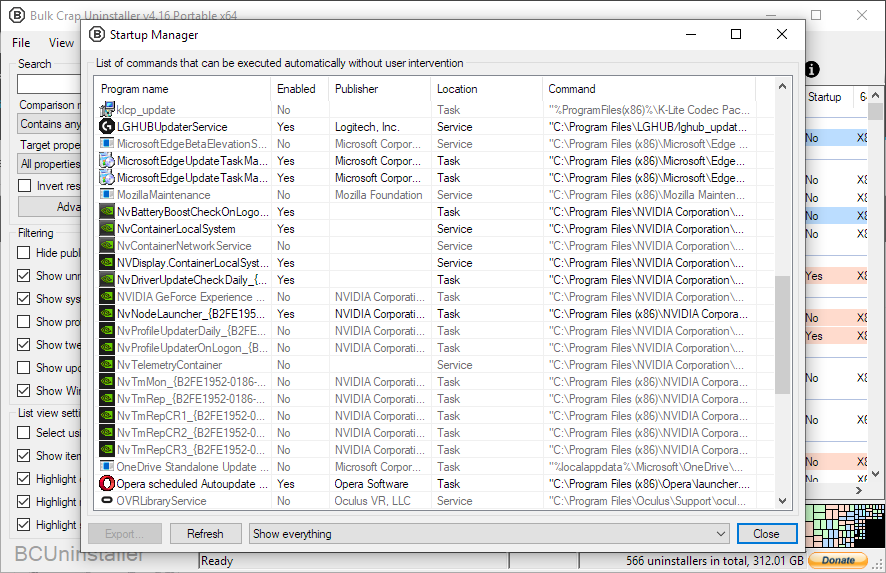
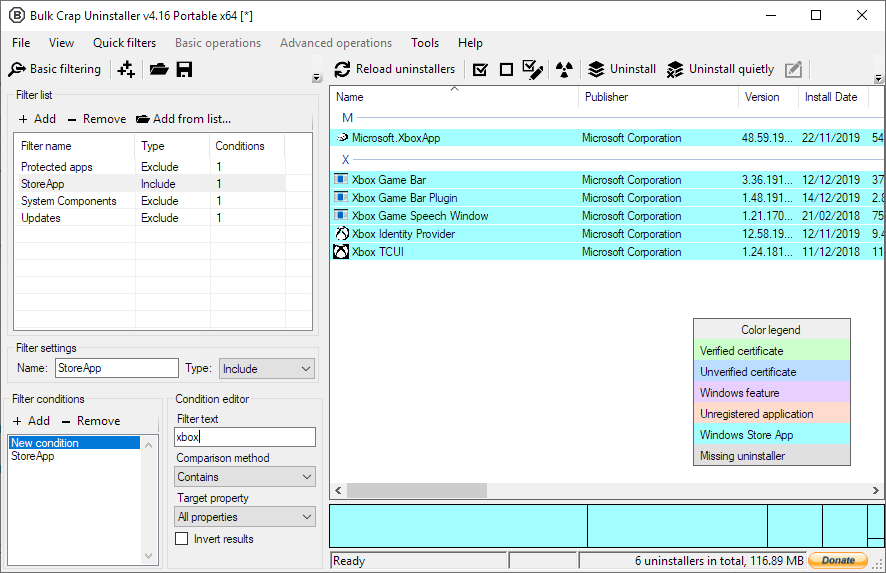
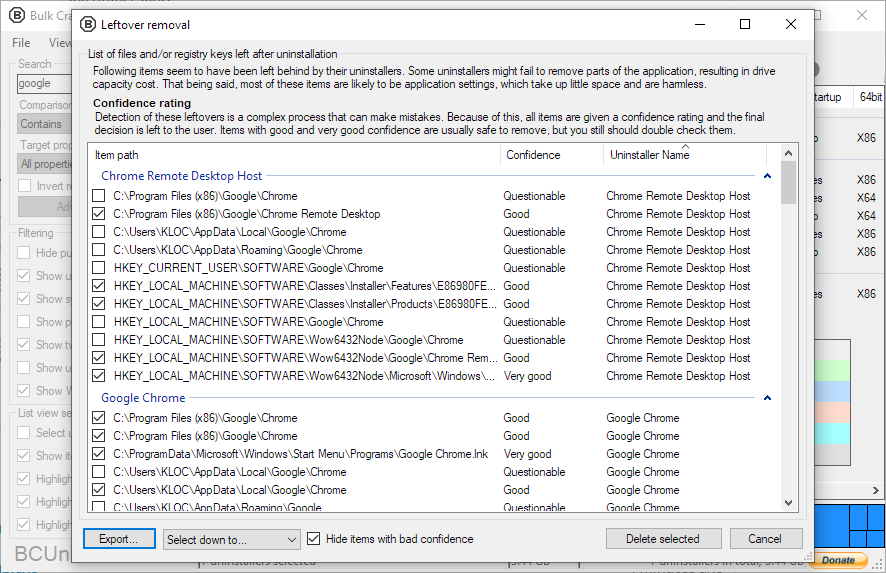
Screenshots taken from Bulk Crap Uninstaller running on Windows. Click any image to enlarge.
Getting Started with Bulk Crap Uninstaller
From download to your first batch cleanup in under ten minutes. Here is everything you need to know.
Downloading Bulk Crap Uninstaller
Head to our download section above to grab the latest version of BCUninstaller (currently v5.9). You will find two options: the installer (BCUninstaller_5.9_setup.exe) and the portable ZIP (BCUninstaller_5.9_portable.zip).
The installer is a small .exe file that downloads the .NET 6 runtime automatically if your system does not already have it. The portable ZIP is larger (around 143 MB) because it bundles the .NET runtime inside, but it runs without any installation at all. Just extract and double-click BCUninstaller.exe.
If you are not sure which to pick: go with the portable version. You can run it straight from a USB drive, move it between PCs, and delete the folder when you are done. No registry entries, no leftover files. For IT techs who work on client machines, portable is the obvious pick.
Installation Walkthrough
If you picked the portable version: Extract the ZIP to any folder (your Desktop, a USB drive, wherever). Open the folder and run BCUninstaller.exe. That is it. Skip ahead to step 3.
If you picked the installer: Run BCUninstaller_5.9_setup.exe. Windows SmartScreen may pop up since this is a free open-source tool that is not signed with an expensive code certificate. Click “More info” and then “Run anyway” to proceed.
C:Program FilesBCUninstaller is fine for most people.
Platform note: Bulk Crap Uninstaller is Windows-only (Windows 7 SP1 through Windows 11). There is no macOS or Linux build. If you need an uninstaller for those platforms, check out AppCleaner (macOS) or your package manager (Linux).
BCUninstaller_5.9_setup.exe /VERYSILENT /NORESTART from an elevated command prompt. This installs with zero user interaction, perfect for deployment scripts.
Initial Setup & Configuration
On first launch, BCUninstaller opens a short setup wizard (6 pages). It walks you through language, detection settings, and filtering preferences. You can click through most of it without changing anything, but here are the screens worth paying attention to:
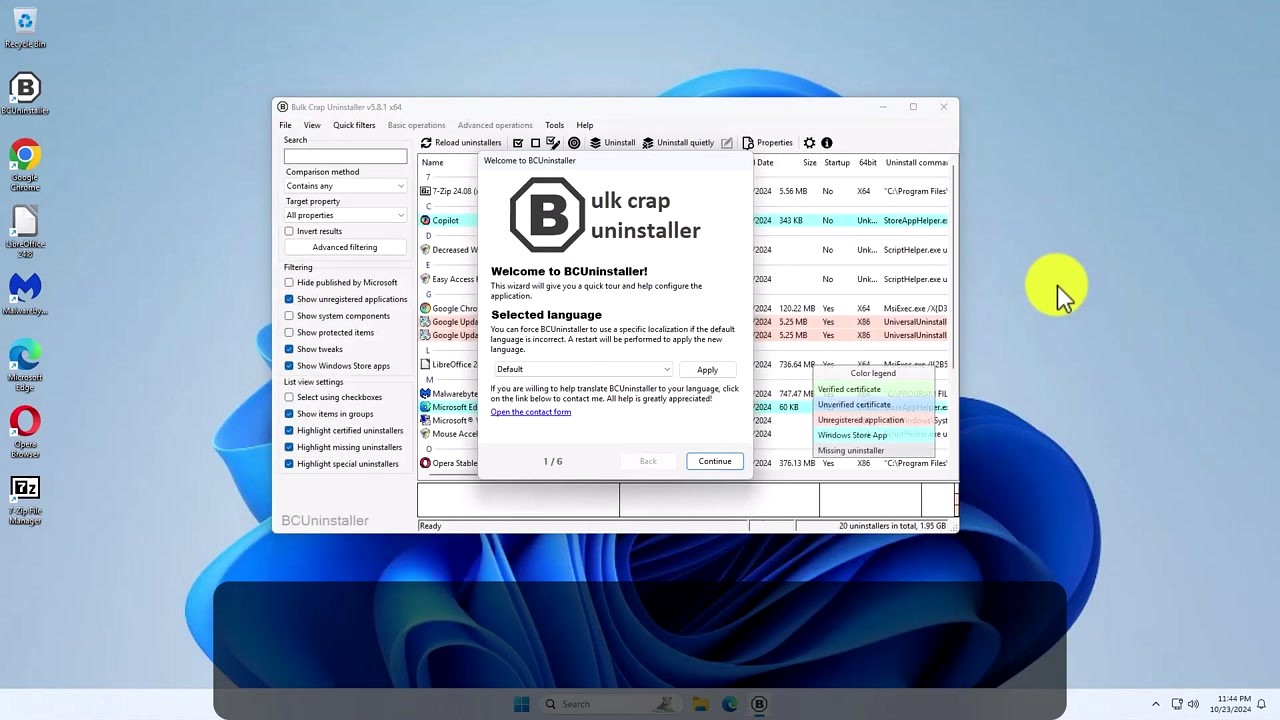
Page 1 – Language: Select your language from the dropdown. BCUninstaller supports about 20 languages. If yours is missing, the developer welcomes translations through the contact form linked on the same page. Leave it on “Default” for English.
Pages 2-4 – Detection settings: These control what BCUninstaller scans for. The defaults are reasonable. Keep “Show unregistered applications” checked – this catches portable apps and orphaned programs that Windows does not track. Leave “Show system components” unchecked unless you know what you are doing. Checking it shows things like driver packages and Windows updates, which can brick your system if removed carelessly.
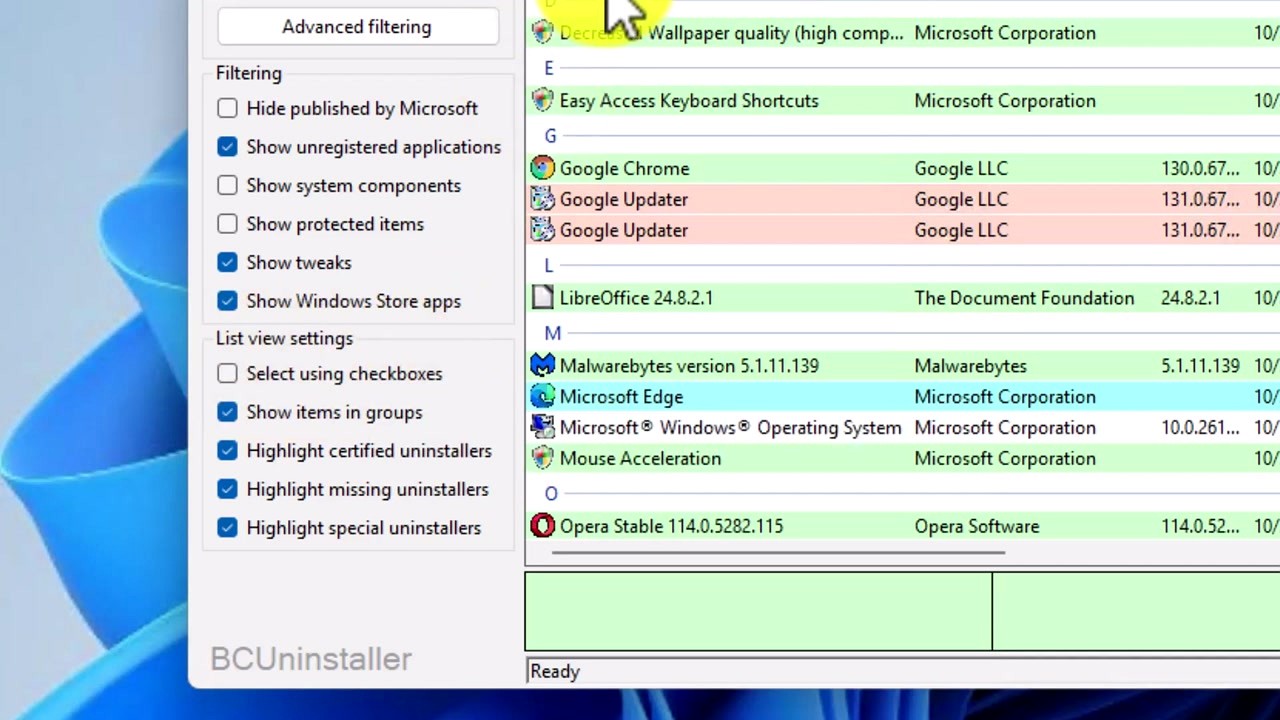
Pages 5-6 – Display and finish: You can turn on “Select using checkboxes” here, which adds checkboxes next to every program in the list. This makes batch selection much clearer. Click “Continue” to finish the wizard.
After the wizard, BCUninstaller scans your system. This takes anywhere from 10 seconds to two minutes depending on how many programs you have installed and how fast your drive is. Once it finishes, you will see the full program list color-coded by certificate verification status: green rows are verified publishers, blue rows are unverified, yellow rows are unregistered apps, and red rows have missing uninstallers.
Your First Batch Uninstall
Here is where BCUninstaller does what it was built for. Let’s walk through removing several programs at once.
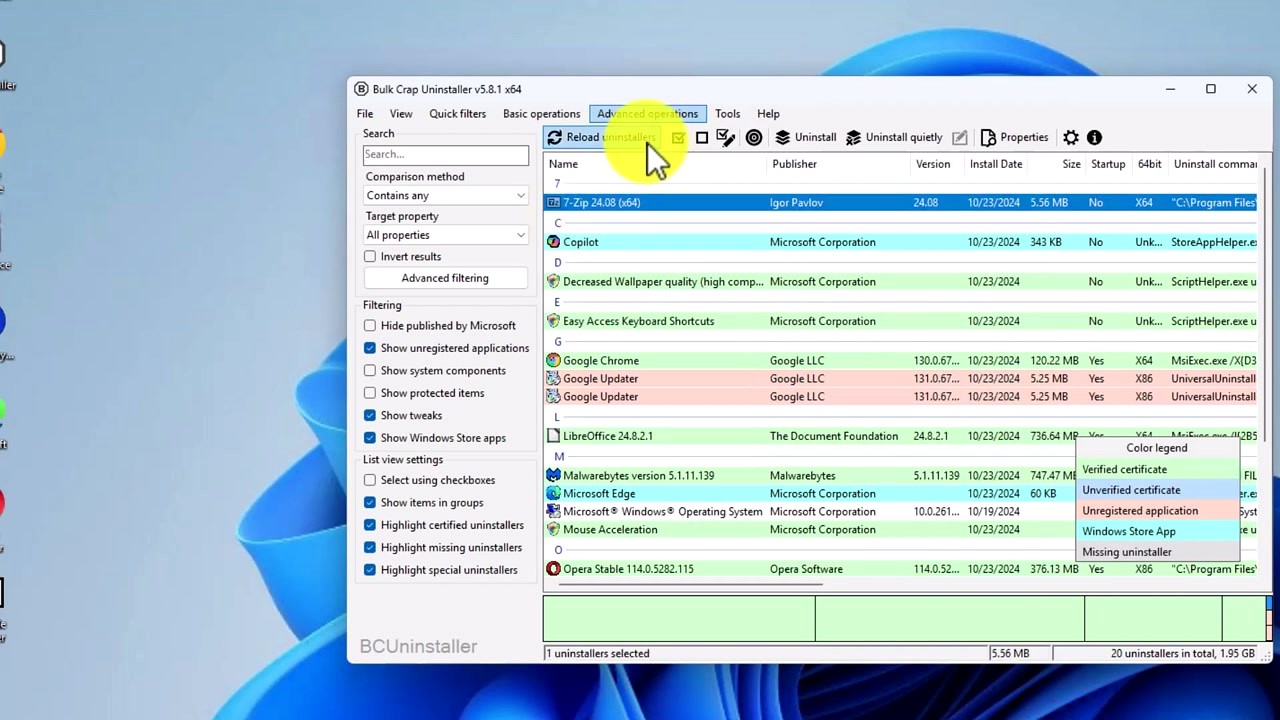
Select the programs you want gone. Click the checkbox next to each one, or use the search bar in the upper-left to filter by name. You can also filter by publisher using the left sidebar. Want to nuke everything from a specific company? Right-click any entry, select “Select by publisher,” and BCUninstaller highlights every program from that publisher.
Pick your uninstall mode. The toolbar at the top offers two main buttons:
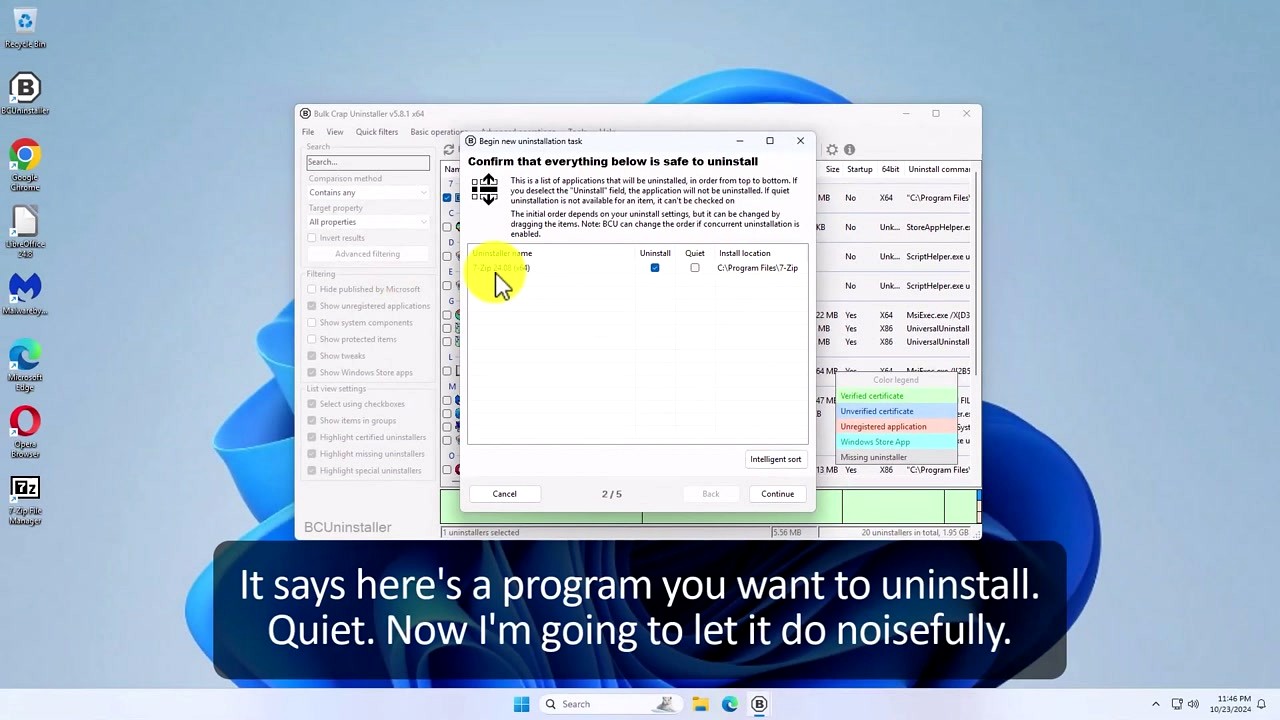
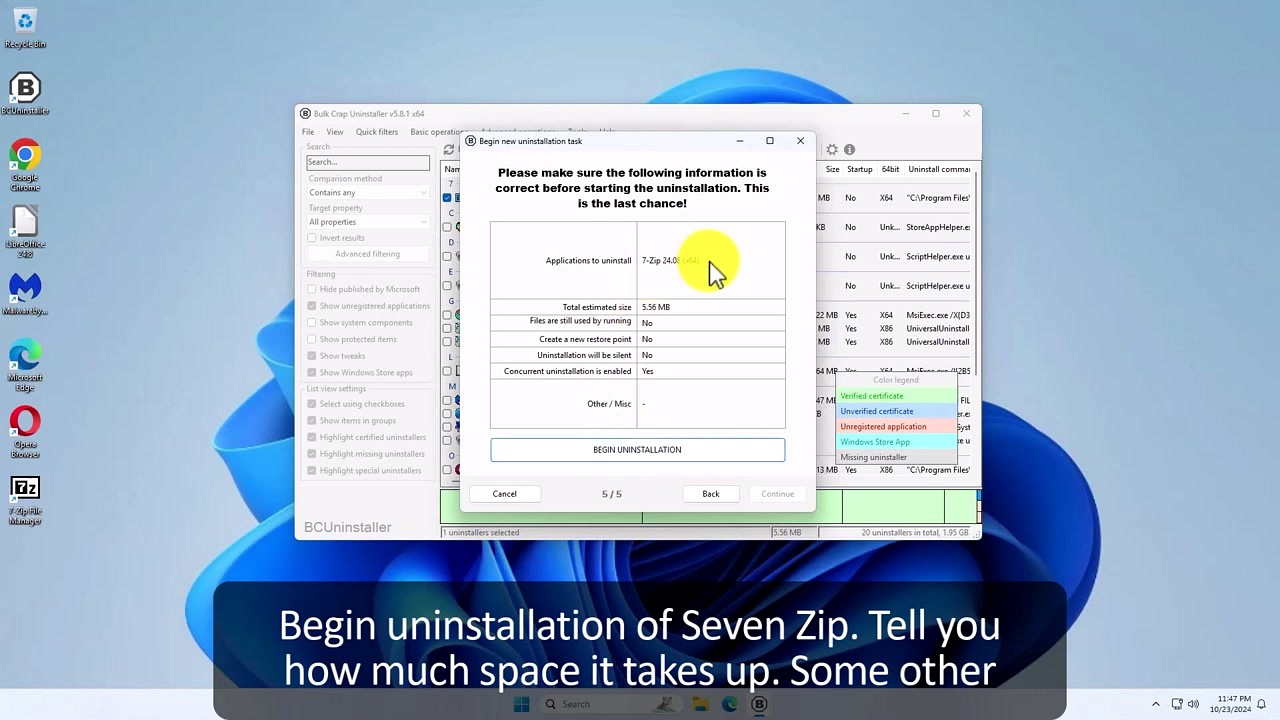
After you click either button, BCUninstaller walks you through a 5-step confirmation wizard. It shows you exactly what will be removed, checks if any running processes need to be closed, and gives you a final “BEGIN UNINSTALLATION” button. No program gets removed until you hit that button.
After uninstallation, the leftover scanner kicks in. This is where BCUninstaller really pulls ahead of competitors like Revo Uninstaller or Geek Uninstaller. It scans your disk and registry for files and keys that the uninstallers left behind. Each leftover gets a confidence rating: “Very good,” “Good,” or “Questionable.” Items rated Good or above are safe to remove. Be cautious with Questionable items – review them first.
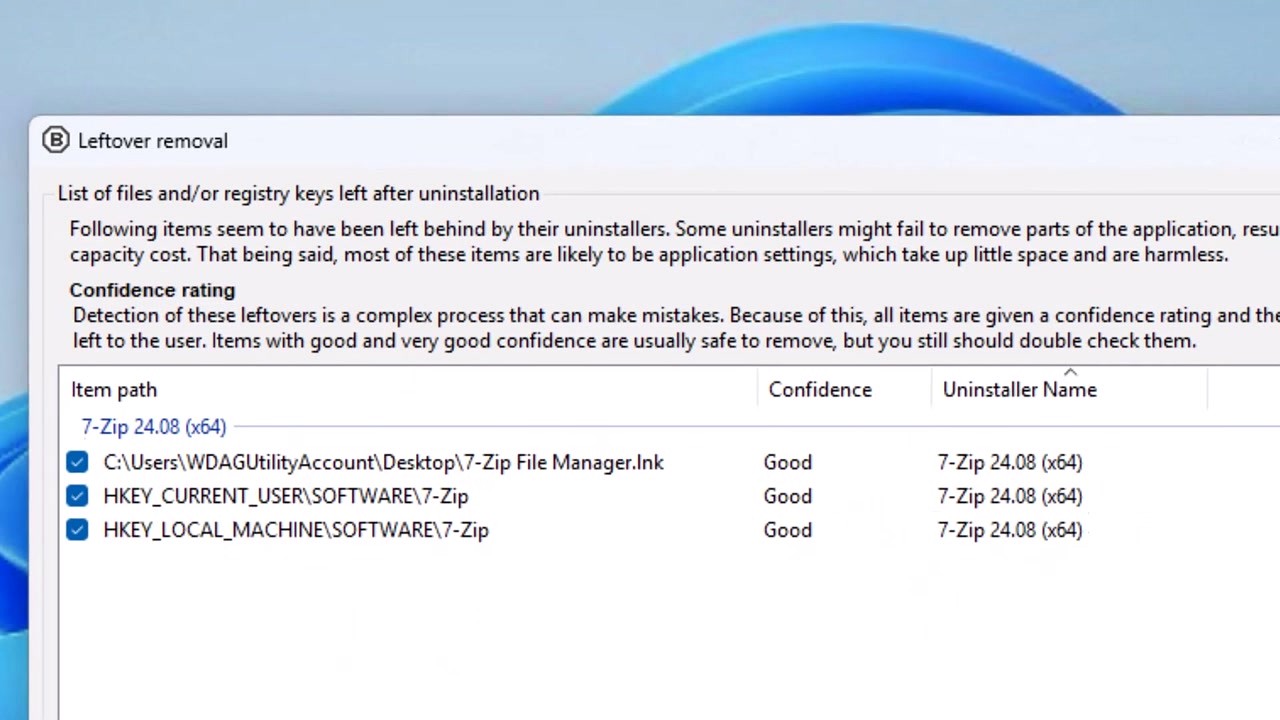
Check the leftovers you want removed, click “Delete selected,” and they are gone. Your system is clean.
| Shortcut | Action |
|---|---|
| Ctrl + F | Focus the search/filter bar |
| Ctrl + A | Select all visible programs |
| Ctrl + Shift + A | Deselect all |
| F5 | Reload / rescan installed programs |
| Delete | Start uninstalling selected programs |
| Ctrl + I | Open properties for selected program |
Tips, Tricks & Best Practices
Create a restore point first. Go to Tools > Options and check “Create a new restore point” before uninstalling. This takes an extra 30 seconds but gives you a safety net if something goes wrong.
Use Quick Filters for fast cleanup. The menu bar has a “Quick filters” dropdown that lets you show only unregistered apps, only Store apps, only Steam games, or only programs without uninstallers. The “unregistered applications” filter is great for finding orphaned software that regular Windows settings can’t even see.
Sort by install date to find bloatware. Click the “Install Date” column header. Programs installed on the same day as your last Windows update or hardware purchase are usually bloatware. Select the batch and hit Quiet Uninstall.
Use the Startup Manager. Under Tools > Open Startup Manager, you can see and disable programs that run at boot. This is separate from the main uninstaller but just as useful for speeding up a sluggish PC.
Export your program list. Go to File > Export to save a list of everything installed on your machine. This is handy before a fresh Windows install or when you need to document what is on a client machine.
Where to get help:
BCUninstaller updates manually. Check the download section periodically or watch the GitHub releases page for new versions. The developer posts changelogs with every release.
Ready to clean up your system? Grab the latest version and start removing unwanted programs.
Download Bulk Crap UninstallerFrequently Asked Questions
Answers to the most common questions about downloading, installing, and using Bulk Crap Uninstaller on Windows.
Is Bulk Crap Uninstaller safe to download and use?
Yes, Bulk Crap Uninstaller is safe. The project is fully open-source under the Apache 2.0 license, and every line of its C# code is publicly available on GitHub, where it has earned over 17,000 stars from developers and security-conscious users. The source code has been reviewed by thousands of contributors and community members since its initial release.
Windows Defender and most major antivirus engines report the official v5.9 installer and portable ZIP as clean. Some users on Reddit have flagged occasional false positives on VirusTotal — typically 1-2 obscure engines out of 70+ — which happens because BCU interacts deeply with the Windows registry and program directories, behaviors that heuristic scanners sometimes misinterpret. Microsoft Defender consistently clears it.
- Download only from the official sources listed on this page, the GitHub releases page, or trusted mirrors like FossHub and SourceForge
- Avoid third-party “download wrapper” sites that bundle adware with the installer
- The portable version requires no installation at all — just extract and run, leaving zero footprint on your system
- BCU never sends telemetry or usage data back to any server
Pro tip: If your antivirus flags BCU, check the specific detection name. Generic labels like “PUP.Optional” or “Riskware” are heuristic guesses, not confirmed threats. You can verify the file hash against the one listed on the GitHub release page.
For download links from official sources, head to our Download section.
Why does VirusTotal flag Bulk Crap Uninstaller as a threat?
VirusTotal false positives happen because BCU performs system-level operations that trigger heuristic detection in a small number of engines. This is not unique to BCU — many legitimate system utilities like Sysinternals tools, CCleaner, and even Windows built-in recovery tools get flagged the same way.
BCU v5.9 typically triggers 1-3 detections out of 70+ engines on VirusTotal. The flagging engines are usually lesser-known scanners using aggressive heuristics, not signature-based detection. Microsoft Defender, ESET, Kaspersky, Bitdefender, and Malwarebytes all consistently report BCU as clean. The specific behaviors that trigger false positives include registry enumeration, batch file deletion, and the “quiet uninstall” feature that automates installer-based removal processes.
- Download BCU from the official download section or directly from GitHub Releases
- Compare the SHA-256 hash of your download against the hash published on the GitHub release page
- Check VirusTotal yourself — look at which specific engines flag it, and whether the detection name is generic (“Riskware”, “PUP”) rather than a known malware signature
- If your local antivirus blocks it, add an exception for the BCU folder path
Pro tip: The portable version gets fewer false positives than the installer because it skips the NSIS setup process that triggers some heuristic scanners. If you want the cleanest scan results, use the portable ZIP.
See our Features section for details on what BCU actually does under the hood.
Where is the official safe download for Bulk Crap Uninstaller?
The safest download source is the official GitHub repository at github.com/Klocman/Bulk-Crap-Uninstaller/releases, which is maintained by the original developer (Klocman Software). We also mirror these official downloads in our Download section with direct links to the GitHub-hosted files.
BCU v5.9 is available as two variants: a portable ZIP (~8 MB, includes .NET 6 runtime bundled at ~143 MB extracted) and a standard Windows installer (~3 MB, downloads .NET 6 during setup if missing). The portable version is the more popular choice because it requires no installation and can run from a USB drive. Secondary trusted mirrors include FossHub (fosshub.com) and SourceForge (sourceforge.net/projects/bulk-crap-uninstaller), both of which host the same unmodified binaries.
- GitHub Releases — Primary source, always has the latest version first
- FossHub — Clean download host, no wrapper installers
- SourceForge — Long-standing mirror, verified project page
- Avoid sites like Softonic, CNET Download, or random “free download” portals that may bundle toolbars or adware with the installer
Pro tip: Bookmark the GitHub releases page directly. New versions appear there 1-2 days before mirrors pick them up, so you will always have access to the latest build.
Grab the latest version from our Download section, which links directly to the official GitHub-hosted files.
Does Bulk Crap Uninstaller work on Windows 11?
Yes, Bulk Crap Uninstaller works fully on Windows 11, including the latest 24H2 update. BCU v5.9 supports Windows 7 SP1 through Windows 11 without any compatibility workarounds or special configuration.
On Windows 11 specifically, BCU detects and lists Microsoft Store apps (UWP/MSIX packages), Windows Features, and the pre-installed bloatware that ships with new Windows 11 installations — apps like Clipchamp, Microsoft News, Solitaire Collection, and various Xbox components. Many users on Reddit specifically recommend BCU as the best tool for cleaning up a fresh Windows 11 install because it catches programs that the built-in Settings app hides from the standard “Installed apps” list. One common thread involves users removing 30+ bloatware apps from a new laptop in under 5 minutes using BCU’s batch select feature.
- Windows Store apps appear with a purple color code in BCU’s list view
- Windows Features and Updates can be managed through BCU’s filter panel on the left sidebar
- The “Quiet Uninstall” mode works with most Windows 11 built-in apps, skipping confirmation dialogs
- After a major Windows update (like 23H2 to 24H2), some previously removed bloatware may return — re-scan with BCU to catch them
Pro tip: Create a System Restore point before bulk-removing Windows 11 system apps. While BCU handles this safely, some Microsoft apps have dependencies on each other (like Xbox Game Bar and Game DVR), and removing one can disable the other.
Check our System Requirements for the full OS compatibility list.
What are the minimum system requirements for Bulk Crap Uninstaller?
Bulk Crap Uninstaller has minimal system requirements. It runs on any Windows machine from Windows 7 SP1 onward, with .NET 6 as its only dependency (bundled in the portable version).
In terms of hardware, BCU itself consumes around 50 MB of disk space and typically uses 150-300 MB of RAM during a full system scan. The initial scan time depends more on your storage drive speed than CPU — an SSD-equipped system scans 200+ programs in about 10-15 seconds, while a traditional hard drive might take 30-60 seconds for the same scan. CPU usage stays low because BCU is mostly doing I/O operations (reading registry entries and file system paths) rather than heavy computation.
- OS: Windows 7 SP1, Windows 8/8.1, Windows 10, or Windows 11 (all editions)
- Runtime: .NET 6 Desktop Runtime (included in the portable ZIP, or auto-downloaded by the installer)
- RAM: 300 MB free recommended (200 MB minimum)
- Disk: 50 MB free space for the application; more during leftover cleanup operations
- CPU: Any x64 or x86 processor — a dual-core from the last decade handles it without issue
- Display: 1024×768 minimum resolution for the full UI layout
Pro tip: If you are running an older machine with a spinning hard drive, close other disk-intensive programs before scanning. BCU reads thousands of registry keys and file paths during its initial scan, and competing I/O operations slow it down noticeably.
See the full breakdown in our System Requirements table.
Does Bulk Crap Uninstaller work on macOS or Linux?
No, Bulk Crap Uninstaller is a Windows-only application. It is built with Windows Forms (WinForms) and relies heavily on the Windows Registry, MSI database, and Windows-specific APIs for program detection and removal. There is no macOS or Linux port, and running it through Wine or Mono is not officially supported.
This is by design — BCU’s core value comes from deep integration with Windows internals: reading uninstall entries from HKLM and HKCU registry hives, parsing MSI product codes, detecting NSIS and InnoSetup installers, and scanning Windows Store app manifests. None of these concepts exist on macOS or Linux, so a cross-platform version would be an entirely different application. The developer (Klocman Software) has stated on GitHub that Windows remains the sole target platform.
- macOS alternative: AppCleaner (free) or CleanMyMac X (paid) for thorough app removal with leftover cleanup
- Linux alternative: Package managers like apt, dnf, or pacman already handle clean removal. For leftover cleanup, tools like BleachBit or Stacer work well
- Dual-boot users: BCU cannot see or manage programs installed on a Linux or macOS partition, even from within Windows
Pro tip: If you run Windows in a virtual machine on macOS or Linux (using VirtualBox, VMware, or Parallels), BCU works normally inside that VM. Install it in the Windows guest OS and use it as you would on bare metal.
For Windows users, grab BCU from our Download section.
Is Bulk Crap Uninstaller completely free to use?
Yes, Bulk Crap Uninstaller is 100% free with no premium tier, no feature lockouts, no ads, and no usage limits. Every feature in the application — batch uninstall, leftover cleanup, quiet uninstall, startup manager, certificate verification, Steam/Chocolatey/Store app detection — is available to everyone at no cost.
BCU is licensed under Apache 2.0, one of the most permissive open-source licenses available. This means you can use it for personal and commercial purposes, distribute it within your organization, and even modify the source code. Unlike competitors such as Revo Uninstaller (which locks features like “Forced Uninstall” and “Real-Time Monitoring” behind a $24.95 Pro license) or IObit Uninstaller (which gates batch mode and plugin removal in its $19.99 Pro version), BCU gives you the full toolset from day one.
- No trial period, no license key, no registration required
- No ads, no bundled toolbar, no “upgrade to Pro” pop-ups
- Commercially safe — Apache 2.0 allows use in corporate IT environments
- The developer accepts donations through the project’s website and GitHub Sponsors, but this is entirely optional
Pro tip: For IT administrators deploying BCU across multiple workstations, the portable version can be placed on a shared network drive. No per-seat licensing or activation needed, and the premade list feature lets you define standard cleanup profiles for company machines.
Learn about everything BCU can do in our Features section.
What license does Bulk Crap Uninstaller use?
Bulk Crap Uninstaller uses the Apache License 2.0, which is a permissive free software license maintained by the Apache Software Foundation. This is the same license used by projects like Android, Kubernetes, and TensorFlow.
In practical terms, the Apache 2.0 license gives you four key freedoms: you can use BCU for any purpose (personal or commercial), you can view and study the complete source code on GitHub, you can modify the code to suit your needs, and you can redistribute your modified version. The only requirement is that you include the original copyright notice and a copy of the license text if you redistribute. Unlike GPL-licensed software, Apache 2.0 does not require derivative works to be open-source.
- Personal use: Fully permitted, no restrictions
- Commercial use: Fully permitted — companies can deploy BCU across their entire fleet
- Modification: Allowed, with attribution to Klocman Software
- Redistribution: Allowed, must include license notice and state any changes made
- Patent grant: Apache 2.0 includes an explicit patent license, protecting users from patent claims by contributors
Pro tip: If your company’s legal team requires license documentation for third-party tools, the full license text is included in every BCU download (LICENSE file in the root directory) and is also available on the GitHub repository.
Get started with the free download from our Download section.
How do I download and install Bulk Crap Uninstaller step by step?
The fastest way to get running is the portable ZIP, which takes about 30 seconds from download to first scan. No installer, no registry changes, no admin rights needed for the download itself.
BCU v5.9 offers two download formats: the portable ZIP (~8 MB download, ~143 MB extracted with bundled .NET 6 runtime) and the standard setup EXE (~3 MB, requires .NET 6 Desktop Runtime installed separately). The portable version is the more popular option because it leaves no traces on your system and can run from a USB drive. The installer version integrates into the system more tightly, adding a Start Menu shortcut and optional context menu entries.
- Visit our Download section and choose either “Portable ZIP” or “Setup EXE”
- For portable: Extract the ZIP to any folder (e.g., C:ToolsBCUninstaller). Right-click the ZIP and select “Extract All” or use 7-Zip
- For installer: Run BCUninstaller_5.9_setup.exe. If Windows SmartScreen warns you, click “More info” then “Run anyway” — this happens because the binary is not EV code-signed
- On the installer, accept the license agreement, choose your install directory (default is fine), and finish
- Launch BCUninstaller.exe. The first scan takes 10-60 seconds depending on your drive speed and number of installed programs
- BCU will detect all installed programs, including hidden ones, Store apps, and orphaned entries
Pro tip: If you plan to use BCU regularly, pin the portable EXE to your taskbar. For IT use, place the portable folder on a network share so any technician can launch it without installing anything.
For a detailed walkthrough with screenshots, check our Getting Started guide.
Bulk Crap Uninstaller portable vs installer – which should I choose?
Choose the portable version. It accounts for the majority of BCU downloads and is recommended by both the developer and the community. The only reason to prefer the installer is if you specifically want Start Menu shortcuts and Windows context menu integration.
The portable ZIP weighs about 8 MB to download and expands to roughly 143 MB because it bundles the entire .NET 6 runtime. This means it works on any Windows 7+ machine without needing .NET pre-installed. The installer is smaller at 3 MB but will download .NET 6 during setup if your system does not already have it, which adds another 50+ MB download. Functionally, both versions are identical — same features, same performance, same detection capabilities.
- Portable advantages: No installation footprint, runs from USB drives, no admin rights needed to extract, easy to update (just replace the folder), leaves zero registry entries of its own
- Portable drawback: Larger extracted size due to bundled .NET runtime; no automatic Start Menu or context menu integration
- Installer advantages: Smaller initial download, adds Start Menu entry, optional Windows Explorer context menu (“Uninstall with BCU”)
- Installer drawback: Requires .NET 6 runtime (auto-downloads if missing), triggers SmartScreen warning, leaves its own uninstall entry in Windows
Pro tip: IT professionals running BCU across multiple machines should use the portable version on a shared network path. Each technician can launch it directly without per-machine installation, and you update it in one place by swapping the folder contents.
Download either version from our Download section.
How to fix Bulk Crap Uninstaller not opening or crashing on startup?
The most common cause of BCU failing to open is a missing or corrupted .NET 6 Desktop Runtime. If you are using the installer version and .NET 6 is not properly installed, BCU will either crash silently or show a .NET runtime error dialog on launch.
This issue appears more often after Windows updates that modify the .NET runtime installation, or on systems where a previous .NET installation was interrupted. The portable version includes its own .NET runtime copy, so it is less affected — but even the portable version can fail if its extracted files are incomplete (for example, if the ZIP extraction was interrupted or the antivirus quarantined a DLL file during extraction).
- Check .NET 6: Open a Command Prompt and run
dotnet --list-runtimes. Look for “Microsoft.WindowsDesktop.App 6.x.x” in the output. If missing, download it from Microsoft’s official .NET download page - Try the portable version: If the installer version crashes, download the portable ZIP from our Download section, extract to a fresh folder, and try launching from there
- Check antivirus: Some antivirus software quarantines BCU DLLs silently. Check your AV quarantine log and add an exception for the BCU folder
- Run as Administrator: Right-click BCUninstaller.exe and select “Run as administrator.” Some system scans require elevated privileges
- Re-extract cleanly: Delete the old folder and extract the portable ZIP again with a tool like 7-Zip to avoid corrupted files
Pro tip: If BCU opens but hangs during the initial scan, the issue is usually an extremely slow hard drive or a single corrupted registry entry. Try starting BCU while holding Shift to skip the auto-scan, then run a manual scan from the File menu.
For a full setup walkthrough, see our Getting Started guide.
BCUninstaller still shows uninstalled apps or fails to remove programs properly
This is a known behavior that happens when a program’s uninstaller runs but leaves behind registry entries, or when BCU’s cached scan results have not been refreshed. It does not mean BCU failed — it means leftover data still exists on the system.
Multiple Reddit threads report this issue, and the fix is straightforward in most cases. When BCU “uninstalls” a program, it runs that program’s own uninstaller (the same one Windows would use). If that uninstaller is buggy or incomplete, remnants stay behind. BCU’s real power kicks in during the post-uninstall cleanup phase, where it scans for orphaned files, empty folders, and stale registry keys. If you skip or cancel this cleanup step, the app may still appear in BCU’s list on the next scan.
- After uninstalling, always run the “Leftover removal” step when BCU offers it — this is where the actual deep cleaning happens
- Click the “Reload” button in the toolbar (or press F5) to force a fresh scan of the system
- If a program still appears after cleanup, right-click it in BCU and choose “Manual uninstall” to target its specific files and registry keys
- For truly stubborn entries, use “Force removal” from the Advanced Operations menu — this deletes the install directory and removes all registry references regardless of the original uninstaller
- Check the leftover color coding: items marked “Very good” or “Good” (green) are safe to remove. Be cautious with “Bad” (red) items as they might be shared by other programs
Pro tip: When batch-uninstalling many programs, let each uninstaller finish completely before BCU moves to the next one. If your system is slow, increase the timeout value in BCU Settings to avoid premature process kills.
Learn about BCU’s cleanup capabilities in our Features section.
Can Bulk Crap Uninstaller break my Windows installation?
BCU itself will not break Windows, but carelessly removing certain system-level programs or their dependencies can cause issues. This is true of any uninstaller tool, not specific to BCU. The software includes multiple safety mechanisms to help you avoid accidental damage.
One Reddit thread describes a user who removed McAfee and its associated Windows components using BCU, then experienced a broken taskbar and missing Explorer shell. The root cause was removing leftover entries marked as “Bad” confidence without checking what they belonged to. BCU’s leftover scanner assigns a confidence rating to every detected remnant: “Very good” and “Good” are safe to remove, while “Bad” and “Very bad” may belong to other programs or Windows itself. Users who stick to green-rated leftovers report no issues.
- Always create a System Restore point first: BCU can do this for you — go to Tools > Create restore point before starting a batch removal
- Use the backup option: When BCU asks to clean leftovers, choose “Create backup” to save registry keys and files before deletion
- Respect the color coding: Green “Very good/Good” leftovers are safe. Yellow “Questionable” needs manual review. Red “Bad” items should only be removed if you know exactly what they are
- Skip protected items: BCU marks certain entries as “Protected” (like .NET Framework, Visual C++ Redistributables, Windows components) by default. Do not unprotect and remove these unless you have a specific reason
Pro tip: Before any major cleanup session, export your current program list from BCU (File > Export to CSV). This gives you a record of what was installed, making recovery straightforward if something goes wrong.
Check our Getting Started guide for best practices on safe uninstallation.
How do I update Bulk Crap Uninstaller to the latest version?
BCU checks for updates automatically on startup and shows a notification when a new version is available. You can also check manually by going to Help > Check for Updates in the menu bar.
The update process depends on which version you are running. The installer version can self-update: when a new version is detected, BCU downloads the updated installer and runs it automatically, preserving your settings. The portable version does not self-update — you need to download the new portable ZIP and replace the old folder contents. Your settings are stored in a separate configuration file that survives folder replacement, so you will not lose custom filters or preferences. The current version is v5.9, released in July 2025.
- Installer version: Launch BCU, go to Help > Check for Updates. If an update is found, click “Download and Install.” BCU will close, run the new installer, and reopen
- Portable version: Download the latest portable ZIP from our Download section. Extract it to a new folder, copy your settings file (BCUninstaller.settings) from the old folder to the new one, then delete the old folder
- Alternatively, watch the GitHub repository’s Releases page — new versions are tagged and announced there first
Pro tip: If you want to disable the startup update check (useful for air-gapped corporate environments), open BCUninstaller.settings in a text editor and set MiscCheckForUpdates to false.
Download the current release from our Download section.
What is new in the latest version of Bulk Crap Uninstaller?
Bulk Crap Uninstaller v5.9, released in July 2025, brought improved detection of Windows Store apps, better handling of .NET 6+ runtime dependencies, and several bug fixes for the quiet uninstall engine.
The v5.x series represented a major architectural shift from .NET Framework 4.x to .NET 6, which improved startup speed, reduced memory usage during large scans, and enabled better compatibility with newer Windows 11 builds. Prior versions (v4.x and earlier) supported Windows Vista and used the legacy .NET Framework, but the move to .NET 6 dropped Vista support in exchange for significantly better performance on modern systems. Notable improvements across recent versions include better Chocolatey package detection, improved Steam game cleanup, and a more reliable “quiet uninstall” mode that handles edge cases where an installer does not respond to standard silent switches.
- v5.9 highlights: Improved Store app detection, better .NET 6 handling, multiple bug fixes
- v5.8: Added Oculus VR app detection, improved certificate verification speed
- v5.7: Enhanced Steam game detection, new startup manager features
- Full changelogs are available on the GitHub Releases page for every version
Pro tip: Subscribe to the GitHub repository’s releases (click “Watch” > “Releases only”) to get email notifications when new versions drop. The developer does not maintain a mailing list or newsletter, so GitHub notifications are the only official channel.
Check our Features section for the full list of current capabilities.
Bulk Crap Uninstaller vs Revo Uninstaller – which is better?
For most users, Bulk Crap Uninstaller is the better choice because it matches or exceeds Revo Uninstaller’s cleanup results while being completely free and open-source. Revo’s free version locks several important features behind a $24.95 Pro license that BCU gives you at no cost.
TechRadar’s review states that BCU “puts most of its paid competitors to shame,” and independent uninstaller benchmarks consistently show BCU detecting more orphaned entries than Revo Free. Where Revo Free limits you to one program at a time and restricts its “Forced Uninstall” feature to Pro subscribers, BCU handles batch operations natively and includes force removal for free. Revo Pro does have one notable advantage: its “Traced Uninstall” feature monitors an installation in real-time to create a perfect removal profile, which BCU does not offer. For standard uninstallation and cleanup tasks, though, BCU’s post-uninstall scanner catches comparable or more leftovers.
- Batch uninstall: BCU supports batch mode for free. Revo Free is one-at-a-time; batch mode requires Revo Pro ($24.95)
- Leftover cleaning: Both tools scan for orphaned files and registry entries. BCU uses color-coded confidence ratings; Revo uses a three-tier scan depth (Safe, Moderate, Advanced)
- Quiet uninstall: BCU supports silent removal without pop-ups. Revo does not offer this in the free version
- App detection range: BCU detects Store apps, Steam games, Chocolatey packages, and orphaned portable apps. Revo Free detects standard registered programs only
- Open source: BCU is fully open-source (Apache 2.0). Revo is closed-source proprietary software
Pro tip: If you are switching from Revo to BCU, there is no migration needed. BCU reads the same Windows registry uninstall entries that Revo does, so your program list will be the same. Just launch BCU and start scanning.
See our Features section for the full BCU feature set.
Bulk Crap Uninstaller vs Geek Uninstaller – detailed comparison
BCU is more powerful for bulk operations and catches a wider range of installed programs, while Geek Uninstaller is lighter and faster for quick single-app removals. They serve slightly different use cases.
Geek Uninstaller is a single-EXE portable tool (~6 MB) that focuses on simplicity: right-click a program, remove it, clean leftovers. It is fast to open and has a clean, minimal interface. However, Geek Uninstaller only shows standard registered programs — it cannot detect Windows Store apps, Steam games, Chocolatey packages, orphaned portable apps, or Windows Features. BCU detects all of these. Geek Uninstaller also lacks batch mode entirely, meaning you remove programs one at a time. For users who need to strip bloatware from a new PC or clean up dozens of programs at once, BCU is the clear choice.
- Speed: Geek Uninstaller launches in under 2 seconds. BCU takes 5-10 seconds for its initial scan due to deeper system analysis
- Detection range: BCU finds 2-3x more entries than Geek Uninstaller on a typical system because it scans beyond the standard registry locations
- Batch mode: BCU supports selecting and removing multiple programs at once. Geek Uninstaller does not
- Leftover cleanup: Both tools scan for leftovers, but BCU’s scanner is more thorough with its color-coded confidence system
- Price: BCU is fully free. Geek Uninstaller has a free version and a Pro version ($24.95) that adds batch mode and UWP app support
Pro tip: Some power users keep both tools installed. Geek Uninstaller for quick one-off removals (right-click from system tray), BCU for periodic deep cleanup sessions where batch mode and thorough scanning matter.
Learn about BCU’s full detection capabilities in our Features section.
How do I use Bulk Crap Uninstaller command line for automation?
BCU supports command-line operation through BCUninstaller.exe with several switches that enable scripted and automated uninstallation workflows. This is the feature that makes BCU popular with IT administrators and deployment engineers.
The command-line interface allows you to pre-select programs for removal, run in quiet mode without UI interaction, and export program lists for auditing. Combined with the “premade lists” feature, you can define a text file listing all programs that should be removed from a system, then point BCU at that list via command line to execute a standardized cleanup. This is particularly useful for IT departments that need to strip bloatware from new company laptops or prepare machines for a specific software image.
BCUninstaller.exe /uninstall "Program Name"— Uninstalls a specific program by name matchBCUninstaller.exe /uninstall "Program1" "Program2"— Batch uninstall multiple programs in sequenceBCUninstaller.exe /silent— Runs in quiet mode with no user interaction promptsBCUninstaller.exe /export "C:audit.txt"— Exports the full program list to a text file for inventory auditing
Pro tip: Create a .bat script that combines BCU command-line with a premade list file for repeatable cleanup. Store this script alongside the portable BCU folder on a USB drive, and you have a ready-made “new PC cleanup kit” that any technician can run.
For more details on automation workflows, check our Getting Started guide.
Does Bulk Crap Uninstaller remove registry entries and leftover files?
Yes, cleaning leftover registry entries and orphaned files is one of BCU’s core functions and the primary reason users choose it over the built-in Windows uninstaller. After running a program’s own uninstaller, BCU scans for remnants that were left behind.
The post-uninstall cleanup process works in two passes. First, BCU scans common leftover locations: Program Files, AppData (Local, Roaming, LocalLow), ProgramData, the Windows Temp directory, and the user’s Desktop/Documents for stray shortcuts or files. Second, it scans the Windows Registry for orphaned keys in HKLMSOFTWARE, HKCUSOFTWARE, and the standard uninstall registry paths. Each detected leftover gets a confidence rating: “Very good” (100% safe to remove), “Good” (very likely safe), “Questionable” (manual review recommended), or “Bad” (may belong to another program). On a typical uninstall, BCU finds 5-30 leftover items that Windows’ own “Add/Remove Programs” would never touch.
- File leftovers: Empty install directories, orphaned config files in AppData, stray DLLs, cached thumbnails, log files
- Registry leftovers: HKLM and HKCU software keys, file association entries, COM object registrations, Windows shell extensions
- Startup entries: BCU also detects and can remove startup registry entries and scheduled tasks created by uninstalled programs
- Backup option: Before deleting any leftover, BCU can create a backup of the registry keys and files for easy restoration
Pro tip: After a large batch uninstall, reboot your PC before running the leftover scan. Some programs hold file locks during their uninstall process, and those locks release after a restart, letting BCU find and remove more remnants.
See the full capabilities list in our Features section.
How do I remove Windows bloatware from a new PC using Bulk Crap Uninstaller?
BCU is one of the most recommended tools on Reddit for stripping bloatware from new Windows installations. Select all the unwanted apps, hit “Quiet Uninstall,” and BCU removes them in batch with no pop-ups or confirmation dialogs from each individual uninstaller.
A fresh Windows 11 install typically comes with 20-40 pre-installed apps that most users do not want: Clipchamp, Microsoft News, Solitaire Collection, Xbox Game Bar, various OEM trials (McAfee, Norton, etc.), and promotional apps. BCU detects all of these, including Store apps that do not appear in the traditional Control Panel uninstall list. The entire cleanup process takes 5-10 minutes on a typical new laptop.
- Download the portable version of BCU from our Download section and extract it
- Launch BCUninstaller.exe. Let the initial scan complete — it will find all installed programs and Store apps
- Use Quick Filters on the left sidebar to show only Store apps, or sort by Publisher to group Microsoft and OEM apps together
- Select all the programs you want to remove (Ctrl+click for multiple, or check the boxes). Avoid removing items marked “Protected” unless you are certain
- Click “Quiet Uninstall” in the toolbar. BCU will process each removal silently without requiring interaction
- When prompted for leftover cleanup, accept the scan and remove items rated “Very good” and “Good”
Pro tip: Before removing Xbox-related apps, check if you use Game Pass or Game DVR. Xbox Game Bar, Xbox Identity Provider, and Xbox Game Overlay are interdependent — removing one may disable features in the others. If you do not game on this PC at all, remove them all.
For more tips on first-time setup, see our Getting Started guide.
Still have questions? Check the GitHub Issues page or download Bulk Crap Uninstaller and try it yourself.